Control hardware: Time calibration and setting codes
1-Hardware Time Calibration
Step 1: Master Station Time Synchronization
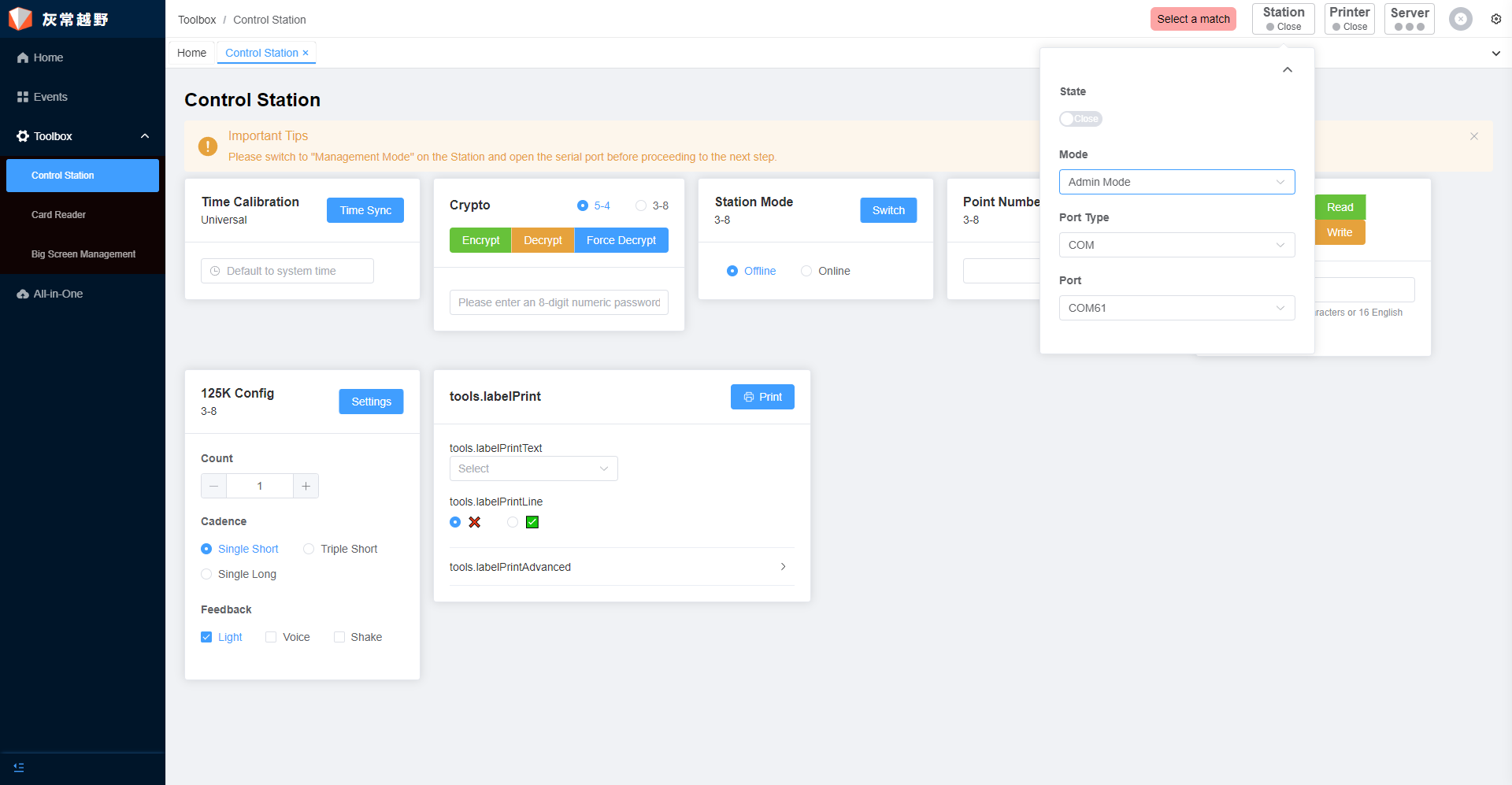
1.Connect the Master Station to a computer using the Master Station Cable.
2.In the Results software, switch the Master Station to Management Mode.
3.Navigate through the menus: Toolbox → CF Station Management → Time Calibration.
4.Execute the Synchronize Time function to transfer the computer’s precise time to the Master Station.
Step 2: Place CF Stations in Standby Mode
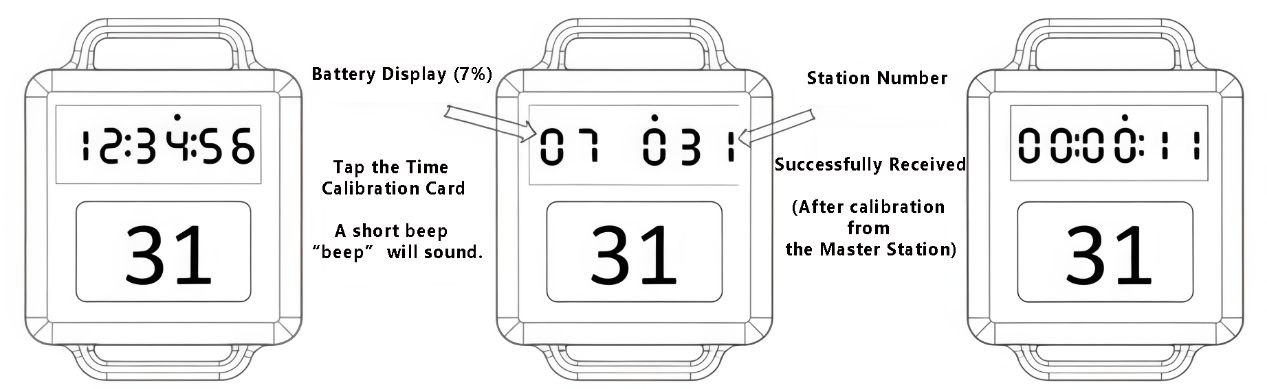
Use the Time Calibration Card to sequentially approach and tap all CF Stations that require time calibration, excluding the Master Station.
Each tap will place that CF Station in the "Awaiting Calibration" state.。
Step 3: Master Station Broadcasts Time
Finally, use the same Time Calibration Card to tap the Master Station. Upon receiving this command, the Master Station will immediately wirelessly broadcast the acquired precise time to all CF Stations in the "Awaiting Calibration" state.
2-Code Assignment
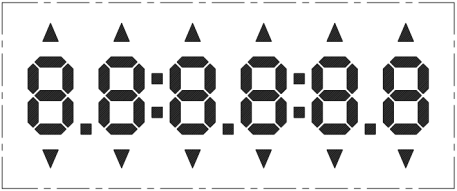
The status of a CF Station is displayed on its screen:
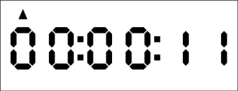
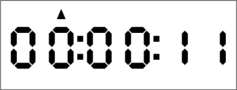
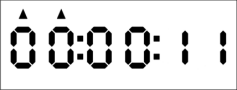
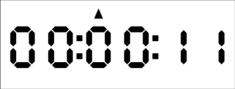
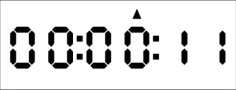
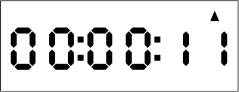
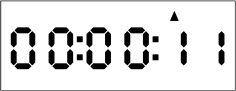
the central 6-digit "8" segment displays the time, while the triangular indicators at the top and bottom denote the device status.
Step 1:Enter “Awaiting Calibration” Mode
Tap the CF Station with the Time Calibration Card. The screen will display Battery Level + Station Number (e.g., “07: 031”), indicating it has entered the “Awaiting Calibration” state.
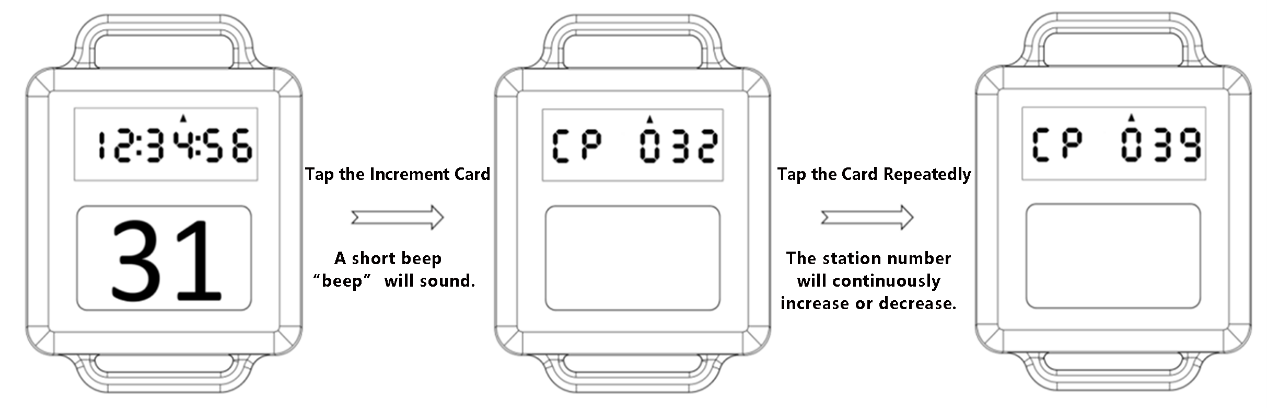
Step 2: Modify Station Number
While the CF Station is in the “Awaiting Calibration” state, you can use the Number Increment/Decrement Card to modify its station number. Different numbers correspond to different station functions (see diagram below). When the CF Station is in different states, the position of the triangular indicator labels varies accordingly, and the screen will display the corresponding information.
| Name | Location | Triangle Indicator Display | Station Number | Type | Configuration Method |
|---|---|---|---|---|---|
| Clear Station | Upper Row |
|
006 | Punching Station | 【First, tap the Time Calibration Card. While in the “Awaiting Calibration” state (display shows battery level and number), the station number can be modified using the Number Increment/Decrement Card. 】 |
| Start Station |
|
016 | |||
| Super Start Station |
|
011 | |||
| Finish Station |
|
021 | |||
| Contact-Free Control Station |
|
031-254 | |||
| Offline Master Station |
|
250 | Master Station | 【After inserting the serial port cable, the display shows “000”】 【The lower-left indicator light blinks】 | |
| Online Master Station |
|
250 | Master Station | 【After clicking “Connect” in the Results Software, the display shows “001”】 【The lower-right indicator light blinks.】 | |
| Check Station | Lower Row |
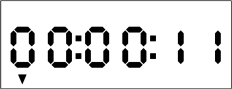
|
026-030 | CF Station | 【Number Increment/Decrement Card】 【Code 26: 100-Meter Orienteering Sprint; Code 27: Standard Orienteering Course】 |
| Contact-Free Mode |
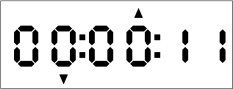
|
/ | CF Station | 【Mode Card】 | |
| Encryption Mode |
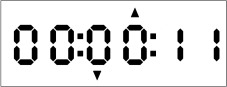
|
/ | CF Station | 【Configure via the Toolbox in the Software】 | |
| Start Command Mode |
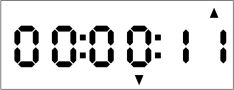
|
/ | Master Station | 【Start Command Card】 | |
| Memory Full |
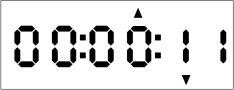
|
/ | CF Station | 【Tap the Clear Card to erase all data stored in the station】 |